Quick answer: For trimming and assembling a short video, start with Clipchamp. For a single clip that needs cleanup, consider MikeSullyTools AI Video Studio. For a project with several video and audio tracks, consider DaVinci Resolve. The right editor depends on whether you need to change the edit, improve the image, or do both.
A long pause, a grainy recording, and a complicated interview timeline call for different controls. This comparison focuses on those everyday jobs so you can choose a starting point before importing your whole project.
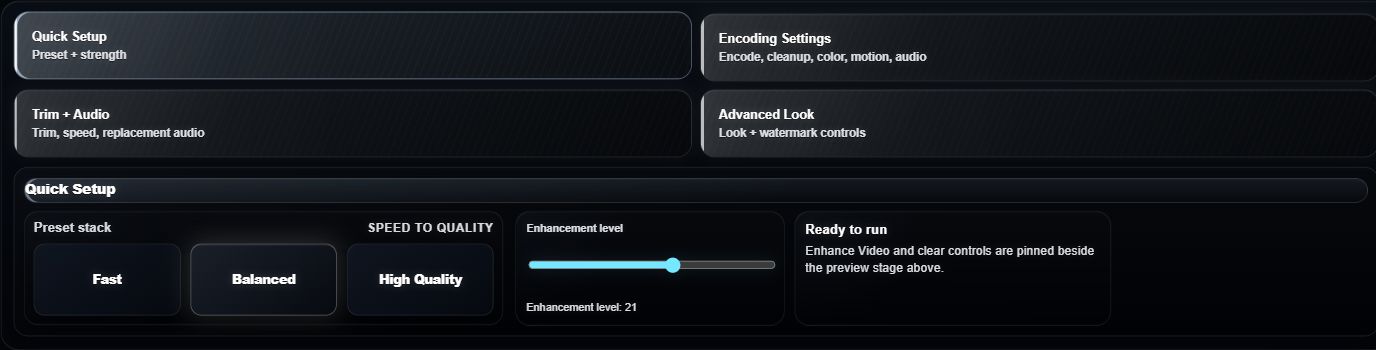
Three video editors compared by task
These are recommendations based on the documented workflows below, rather than a timed performance test. MikeSullyTools publishes this guide and offers one of the tools included.
| Editor | A useful starting point for | Check before starting |
|---|---|---|
| Clipchamp | Trimming, splitting, cropping, and assembling short videos with text and audio. | The export resolution and features included with your account. |
| MikeSullyTools AI Video Studio | Trimming a clip and reviewing its look, audio, and cleanup controls in a browser workspace. | The preview, file requirements, and video credits needed for the export. |
| DaVinci Resolve | Arranging several clips and audio tracks with detailed timeline trimming. | Your computer and media requirements, and which features need the Studio edition. |
Clipchamp: start with straightforward timeline edits
If the problem is an unwanted opening, a pause in the middle, or a clip that needs a different crop, an ordinary edit may be enough. Microsoft's Clipchamp editing guide documents trimming, splitting, cropping, text, audio, and export. The personal editor is available in Edge or Chrome, with an app option on Windows.
Check the account and export requirements before building a project around a particular resolution. Do a short export early so you can inspect the actual file.
MikeSullyTools: inspect a clip before exporting
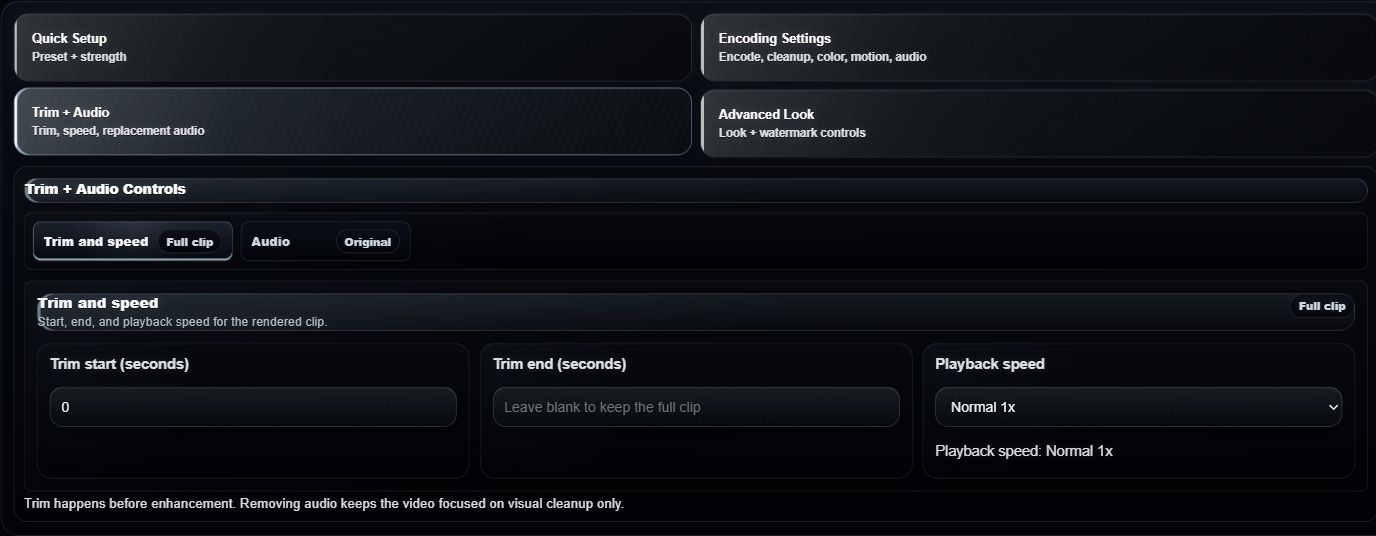
AI Video Studio brings trimming, look and audio controls, cleanup previews, and export into one workspace. Start with the video editor walkthrough, then compare your source against the preview. Review the credit requirement shown for your export before processing.
For soft or noisy footage, use the video settings guide to choose a controlled adjustment. A stronger setting is useful only if the result holds up when you watch it in motion.
DaVinci Resolve: choose detailed control for a larger edit
When the work involves arranging scenes, aligning audio, and refining many cuts, a fuller timeline editor is a sensible starting point. Blackmagic Design's DaVinci Resolve editing overview documents multi-track editing and several trimming tools.
Allow time to learn the timeline and check the requirements for your computer, media format, and chosen edition. Those checks matter more than a feature count when you need to finish a specific project.
Match the fix to the problem
- Unwanted material: trim the beginning or end, or split the clip around a section you want to remove.
- Several clips to combine: use a timeline with the audio and text controls your project needs.
- Grain, softness, or compression damage: compare a short cleanup sample before committing to the whole video. Read why videos look blurry to identify the likely cause.
- A clean edit that looks worse after upload: compare the exported file with the uploaded version. The social video export comparison covers that separate decision.
A five-step check before you commit
- Keep your original. Work from a copy and choose a short section that contains the problem.
- Check compatibility and cost. Confirm the file type, duration, account, credit, and export requirements.
- Make one targeted change. Try the trim, crop, or cleanup adjustment you actually need.
- Watch and listen. Check moving edges, faces, text, and audio timing, not just a paused frame.
- Inspect a downloaded sample. Compare it with the original at the same display size before processing or publishing more footage.
Can a video editor fix every blurry clip?
No. An editor can change the cut and presentation, and cleanup may improve how some footage looks. Severe motion blur, missed focus, or heavy compression can leave detail that cannot be reliably recovered. Sharpening can also make noise or bright edge outlines more obvious. See what AI can and cannot fix in blurry videos for realistic expectations.
Which option should you try first?
Choose Clipchamp for a straightforward timeline edit, AI Video Studio for a focused clip cleanup workflow, or DaVinci Resolve when the project calls for deeper timeline control. Start with a small sample and judge the exported result against the job you need it to do.