Guest Or Member State
- Guest browser tells unsigned-in users to sign in to restore paid credits.
- Session shows Guest until member access is active.
- My Account opens the account path without leaving the studio.
Use the pro studio workflow map and generated workflow examples to find the access header, mode selector, panel layout toggle, frame format menu, preflight review, prompt controls, reference edit tools, credits, variants, downloads, and prompt history.
1. Account and credits. Open My Account to sign in and restore your Pro balance. Buy Credits offers 5–50 Pro credits at $1 each ($5 minimum).
2. Mode and frame. Choose one of the seven modes, then select the frame target. Use Panel Right or Panel Bottom to arrange the controls.
3. Prompt and direction. Review the prompt, negative prompt, camera, lighting, palette, detail and variant count before generating.
4. Cost and output. Each generated output or reference edit uses one Pro credit. Review details, text and logos before downloading.
Use these shortcuts to show one part of the AI Studio V2 Pro guide at a time. The active section opens below while the rest of the workflow stays tucked away.
Back to workflow mapThe pro studio starts with a compact access header that keeps account state, paid credit balance, purchase access, member sign-in, site navigation, and current run cost visible while the workspace stays open.
Use My Account for member sign-in and credit restoration, Buy Credits for Pro credit purchases, and Site Links for the other tools and guides. Check the paid balance and run cost before generating.
Paid Credits shows the stored paid balance. The run header also repeats Cost so the user can see whether a generation or edit will spend credits.
Buy Credits is the visible purchase path from inside the studio. It opens the Pro credit checkout where 5 to 50 credits can be purchased, then returns the user to the studio so the paid balance can refresh.
Site Links keeps Home, AI Image Generator, Photo Editing Station, Video Editing Workstation, Prompt Examples, AI Gen Guide, Blog, and Support reachable from the same header. Use the separate My Account button to sign in or restore purchased credits.
Mode changes the prompt helper, starter chips, default creative controls, frame defaults, preflight message, and active panel. The layout toggle controls whether setup sits beside or beneath the stage.
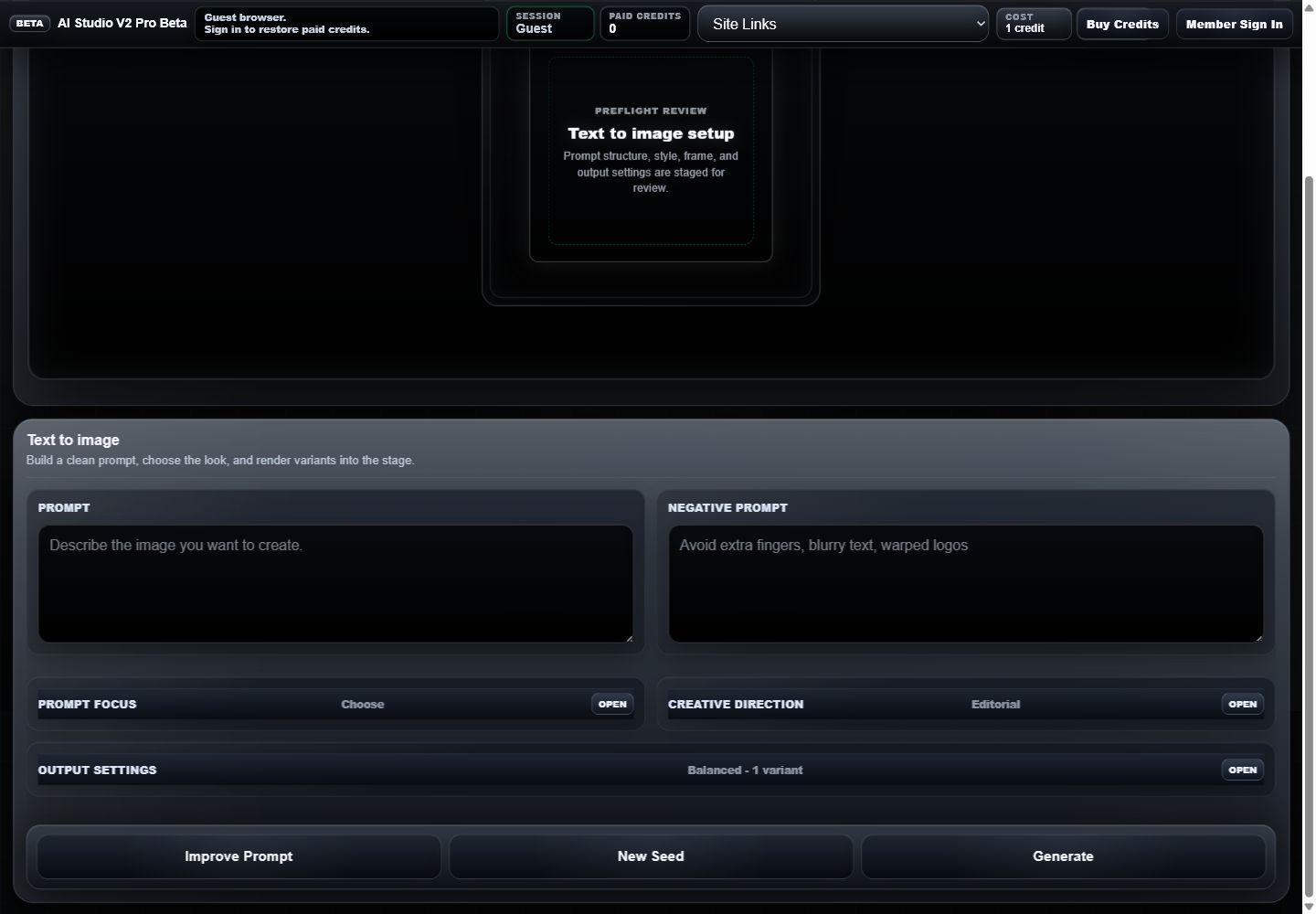
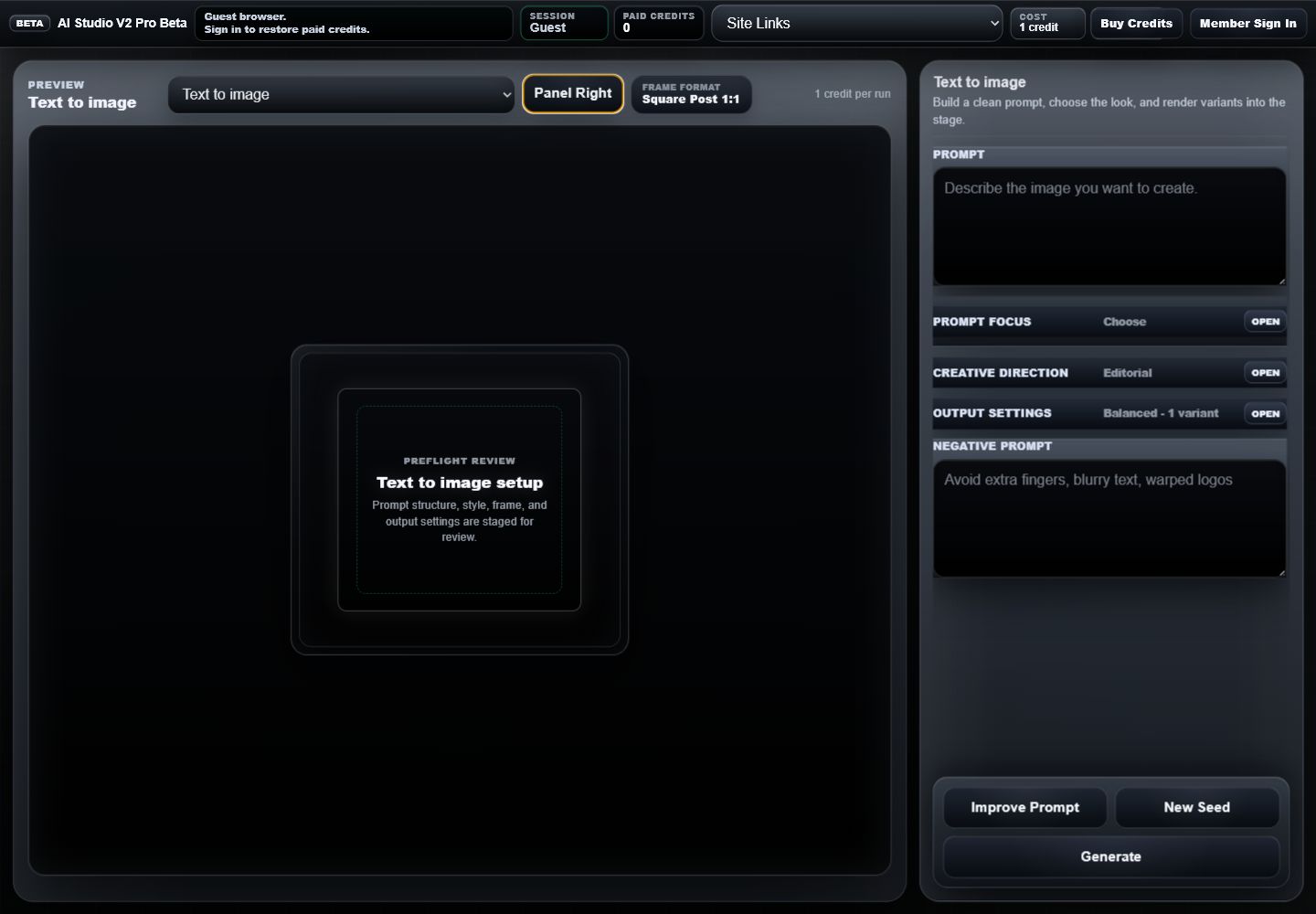
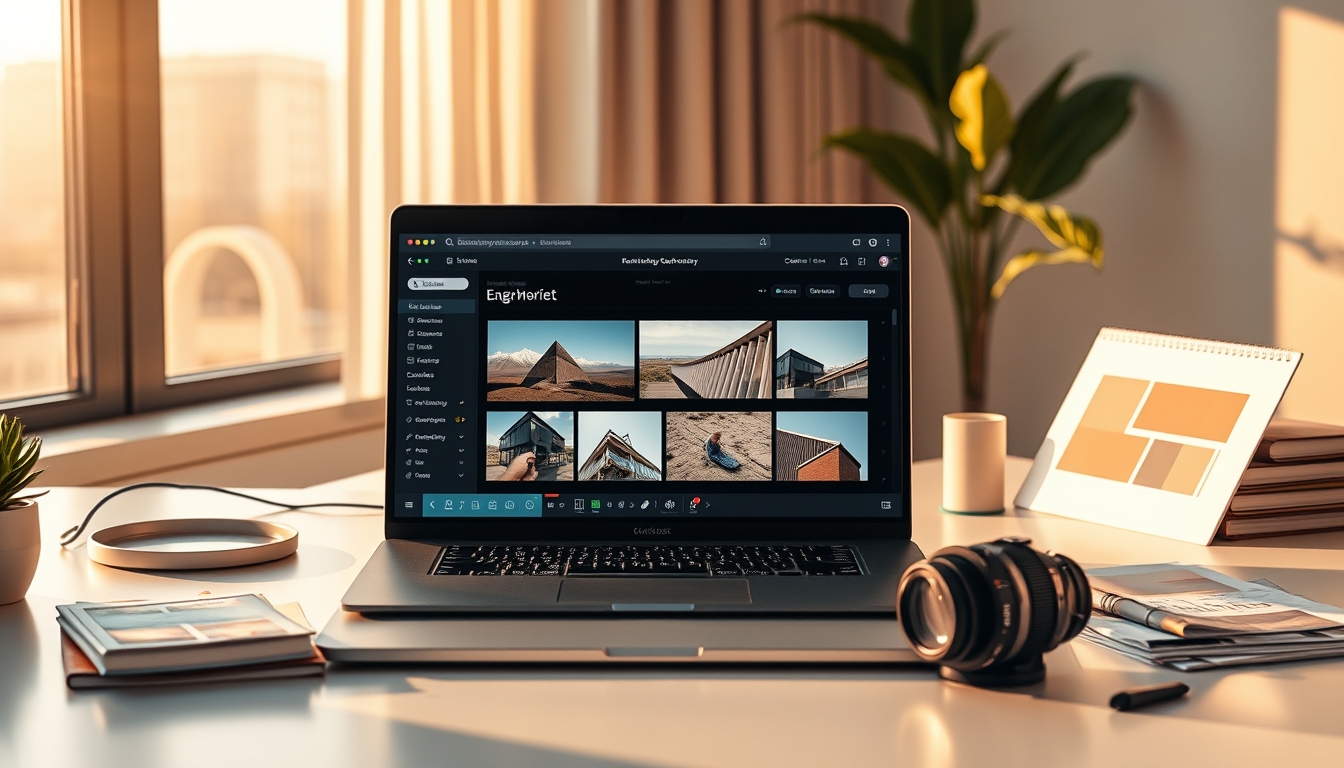
These examples were generated from one-credit workflow runs on June 29, 2026. Use them as practical reference points for mode choice, prompt intent, target frame, and settings before spending credits on your own image.





Text modes revolve around the prompt, negative prompt, mode-specific focus chips, creative direction, camera, lighting, palette, detail, variant count, and seed. The preflight review mirrors those choices before generation.
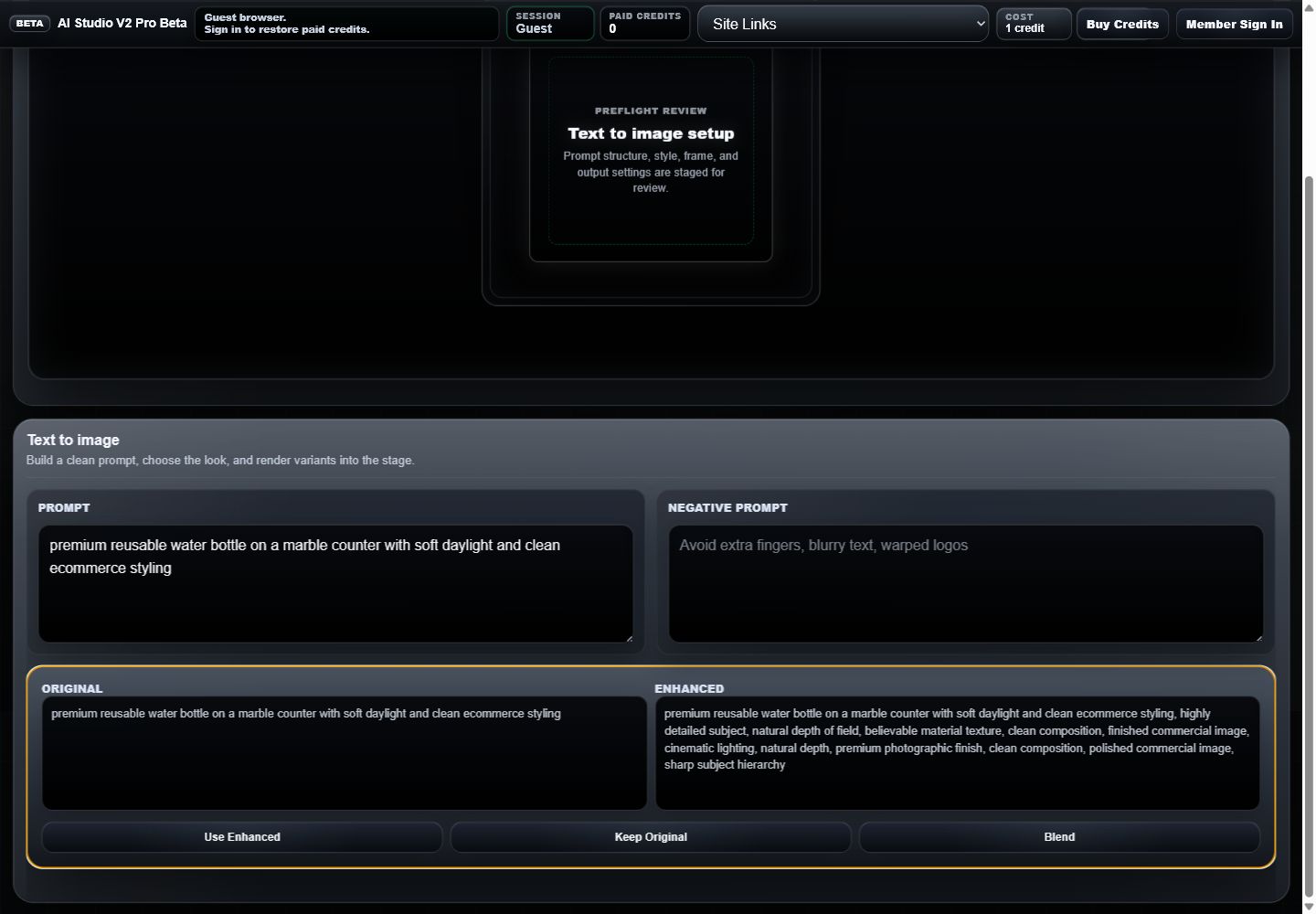
Write the main prompt first. The stage preflight repeats mode, frame, prompt preview, output tags, and warnings so the setup can be checked before credits are spent.
Each mode supplies chips such as Cinematic realism, Clean commercial, Studio ecommerce, Feed safe, Professional headshot, Website hero, and Launch campaign. Choosing a chip adds targeted prompt language.
Creative direction choices are Editorial, Product Ad, Brand Hero, Portrait, Interior, and Concept Art. Use this as the broad style profile before tuning camera and light.
Output settings expose Camera, Lighting, Palette, Detail, Variants, and Seed. Camera includes auto, close-up, wide angle, top down, macro, and low angle. Lighting includes auto, softbox, golden hour, neon, dramatic, and clean daylight. Palette includes auto, neutral, warm, cool, high contrast, and brand clean. Detail includes Fast draft, Balanced, and High detail.
Variants can run from 1 to 4 outputs. Seed can be left random or set to a numeric value where supported; it does not guarantee identical output. New Seed clears the current seed back to a fresh random run.
Use the negative prompt for avoid-list details: extra fingers, blurry text, warped logos, distorted packaging, unwanted watermarks, or any artifact the output should avoid.
Frame Format is organized by output use case. Some labels share the same ratio and size, but the preset name still describes generation intent and export target.
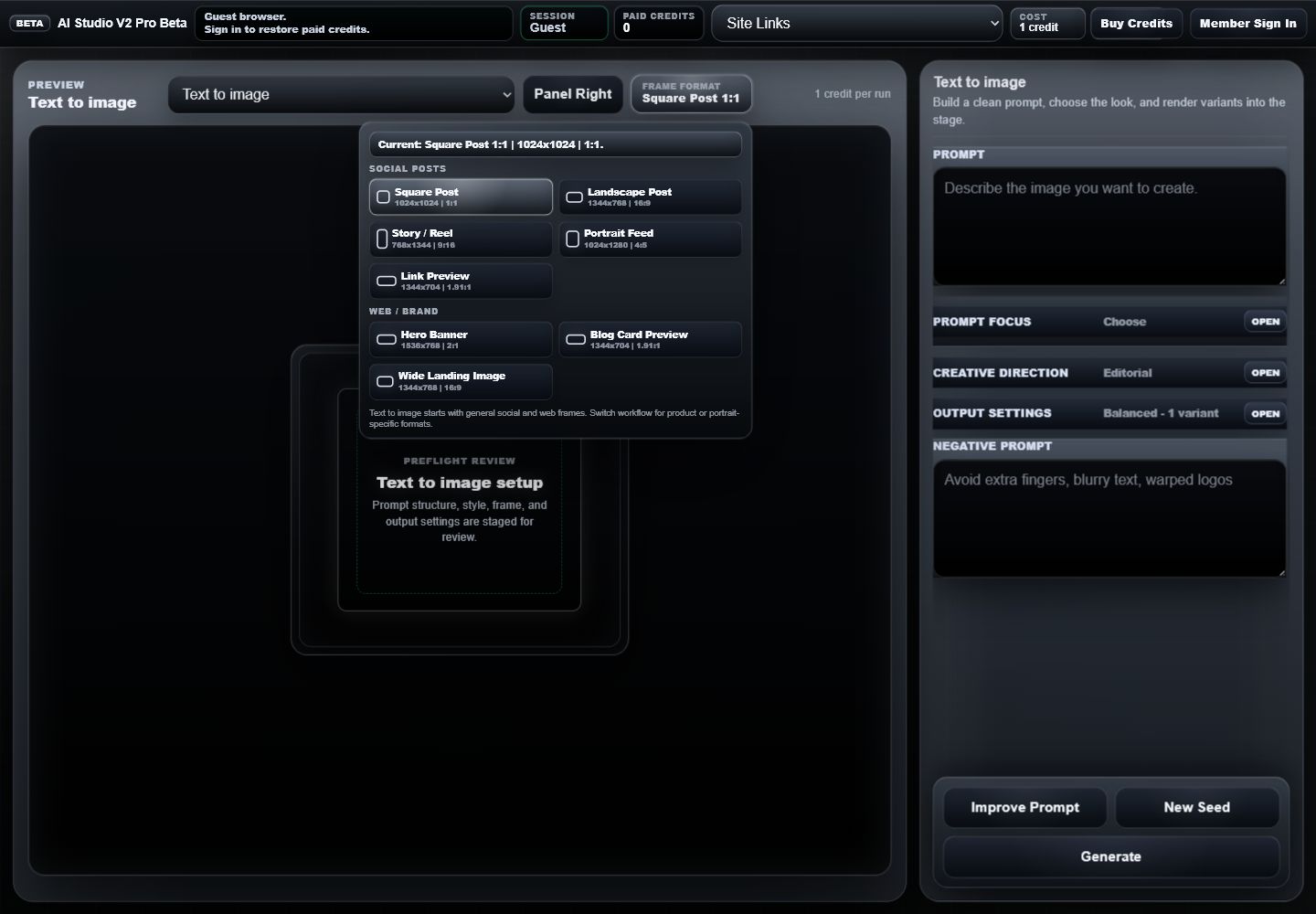
Text to image and Reference edit start on Square Post. Product shot starts on Square Product. Social ad starts on Square Post. Portrait starts on Headshot / Profile. Brand hero starts on Hero Banner. Prompt history starts on Square Post unless loaded settings change it.
Product shot exposes Social Product Crops, Portrait exposes Social Portrait Crops, and Brand hero exposes Social Campaign Crops so the same workflow can move from a primary frame to campaign crop targets without switching modes.
Instagram Post maps to Square Post. Instagram Portrait and Facebook Post map to Portrait Feed. Instagram Story and TikTok map to Story / Reel. X Post and LinkedIn Post map to Link Preview.
The run row is the final checkpoint before spending credits. It keeps prompt improvement, seed refresh, Generate, and the current cost model close to the selected options.
Reference edit mode turns the stage into a before/after workflow. Upload a PNG, JPG, or WebP, write edit instructions, keep the useful smart toggles, then run the edit.
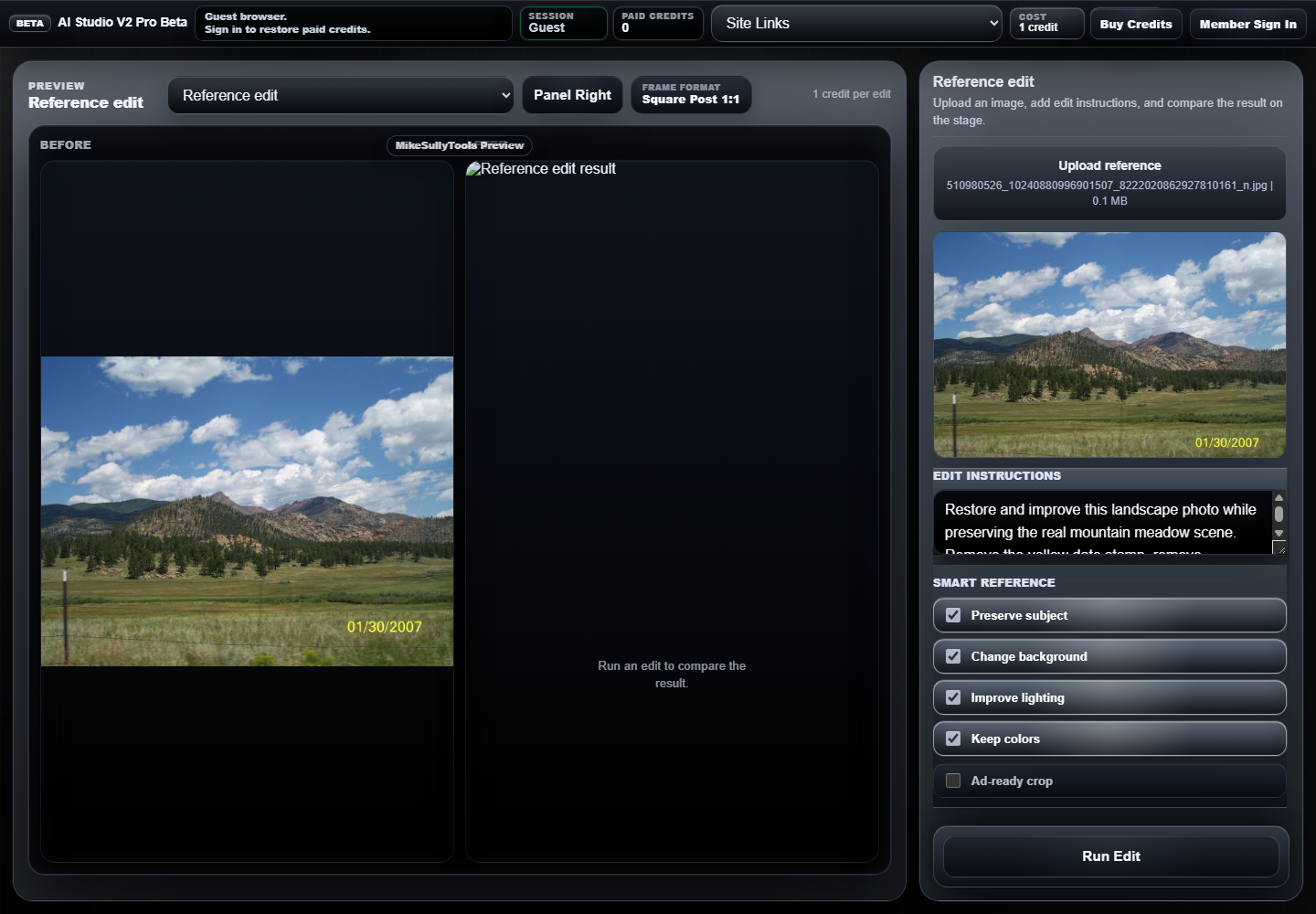
Use Upload reference for PNG, JPG, or WebP. The file name and reference preview confirm the input before any edit is run.
Write the requested change in Edit instructions. Leave it blank only when the text prompt already describes the edit intent clearly.
Preserve subject and Improve lighting are checked by default. Add Change background, Keep colors, or Ad-ready crop when those constraints matter.
The stage compares the uploaded reference on the left with the edited result on the right. Before running, the After pane tells the user to run an edit to compare the result.
Run Edit spends 1 credit per edit in guest/member mode. Use it after confirming the file, instructions, smart toggles, and frame format.
Reference edits can target social, web/brand, product/shop, or portrait/profile formats, so choose the final crop before running.
After generation, the stage can show generated options. Prompt history keeps previous setups available for reloads, while download actions belong to completed variants.
When a generation succeeds, variants appear as Generated options below the stage. Select a card to promote that variant to the main preview.
Download is available from completed variant cards. Locked or unavailable links should be treated as a sign that no downloadable result is ready yet.
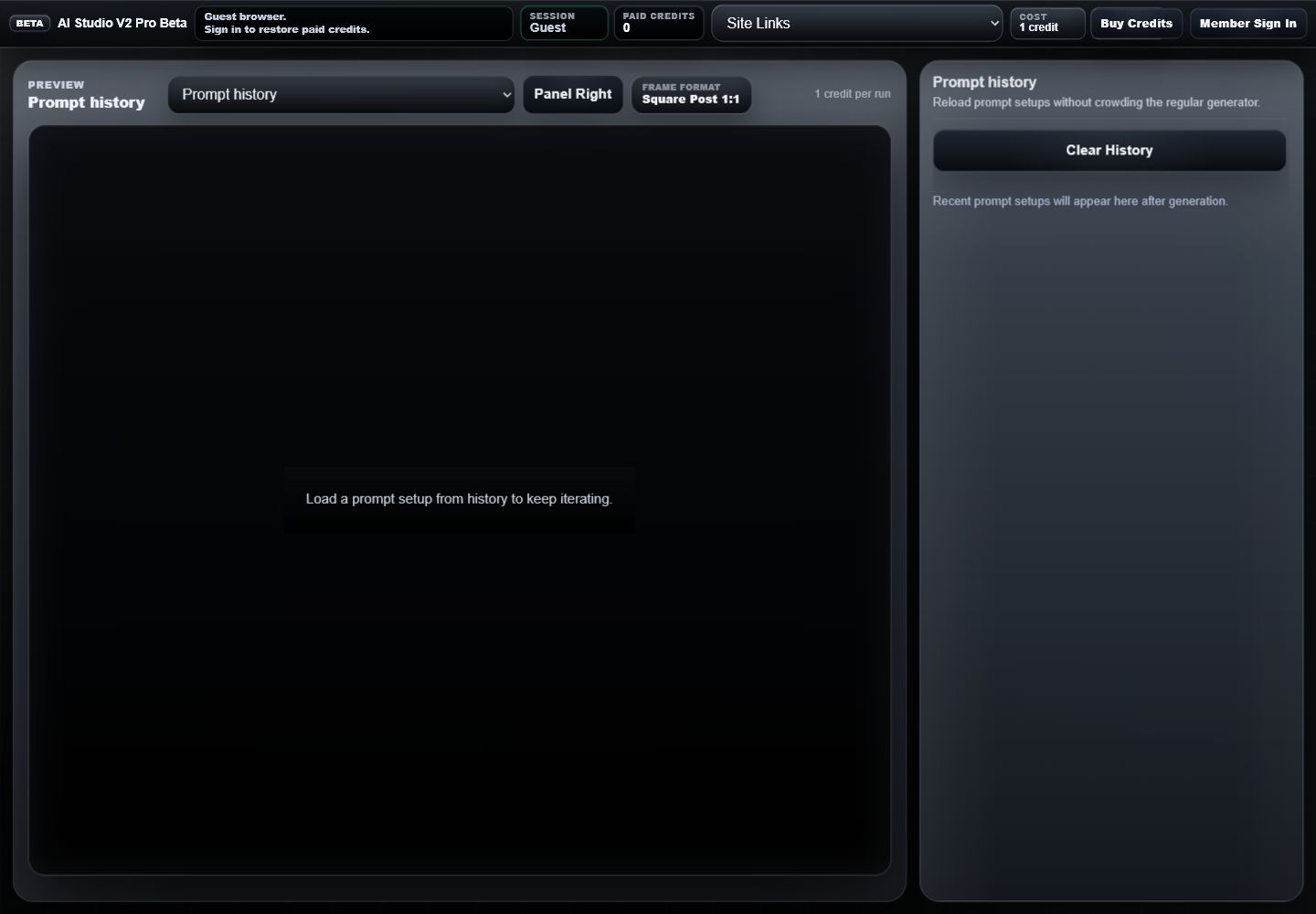
History stores recent prompt setups after generation. Use Load Prompt to restore text, or Load Settings to recover the frame and control setup for iteration.
Clear History removes stored prompt setups from the history list. Use it when the list no longer reflects active projects.
Reference edit results can also appear as generated options, and selecting them brings the before/after comparison back into view.
Confirm the selected variant, output frame, prompt intent, and visible artifacts before downloading or starting a new generation.
Use these starting setups when a user needs a fast path through mode, frame, creative direction, and output controls.
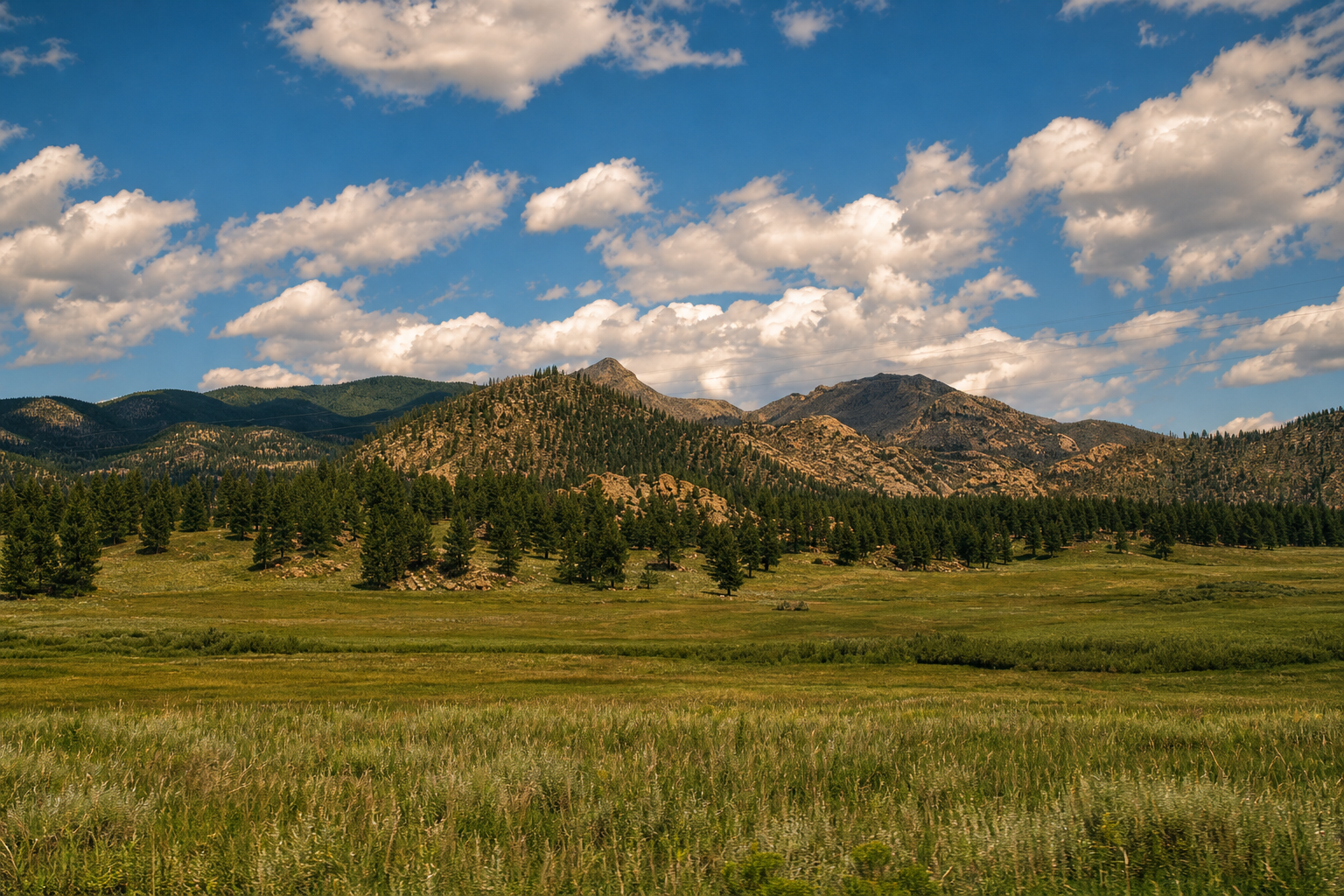
Mode: Product shot. Frame: Square Product or Portrait Product. Direction: Product Ad. Camera: Close-up. Lighting: Softbox. Palette: Brand clean. Detail: High detail.
Mode: Social ad. Frame: Portrait Feed, Story / Reel, or Link Preview. Direction: Product Ad. Add Feed safe or Offer led focus. Use high contrast and clean daylight.
Mode: Portrait. Frame: Headshot / Profile or Full Portrait. Direction: Portrait. Camera: Close-up. Lighting: Softbox. Palette: Neutral. Detail: High detail.
Mode: Brand hero. Frame: Hero Banner or Wide Landing Image. Direction: Brand Hero. Camera: Wide angle. Lighting: Dramatic. Keep copy-safe negative space in the prompt.
Use Panel Right when comparing the stage and controls at the same time. Use Panel Bottom when the prompt and output settings need more horizontal space.
Yes. In generation modes, 1 variant costs 1 credit and up to 4 variants cost up to 4 credits per run. Reference edit is 1 credit per edit.
Check mode, frame, prompt, negative prompt, creative direction, camera, lighting, palette, detail, variant count, seed, and credit state in the preflight review.
Use the frame menu as the target crop and export intent, then review the completed variant before download. If the visible result needs a tighter crop or a different orientation, adjust the frame, prompt, or reference edit instructions and run another pass.
Use Prompt History after successful runs when you want to reload a prior prompt or recover settings for another iteration.