Voiceover Studio Guide
Voiceover Recorder Guide
Plan a script, read from the teleprompter, record audio or webcam plus microphone, use slides as presentation cues, review each take, and save the finished audio or video file—all from one browser workspace.
1 · Script2 · Mode3 · Dry run
4 · Record5 · Review6 · Save
Workspace reference
The recorder at a glance
Use this control map to orient yourself before opening a focused section. The cards describe the current recording and manual slide-cue workflow.
Section 01
Start from the dashboard
The dashboard is the fastest route into a new job. Paste narration into the central composer, choose a quick action, or use a start card for audio, slides, script editing, or presentation planning.
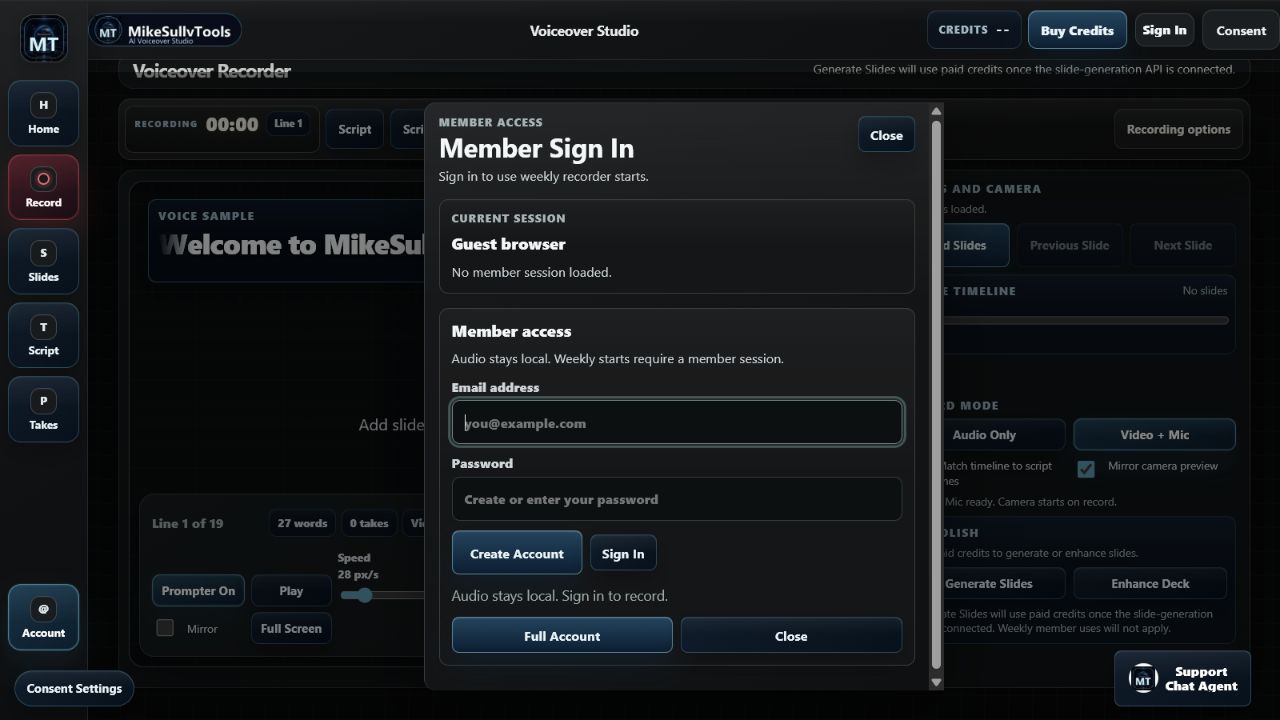
Sign in before recording
Guests can explore the workspace and prepare a script, but a member session is required when Record is pressed.
Check the allowance
Check the shared weekly balance in the header. Uses in other eligible tools reduce the same allowance. A guest sees dashes until the account state loads.
Paste or describe the job
Add narration to the composer, then choose Open Script. You can also enter the workspace first and edit there.
Pick the closest shortcut
Record audio and Video + mic preselect a capture mode. Add slides opens the manual image-upload flow.
Privacy boundary
Recorded audio and video stay local in the browser until you use Save Latest or Save on an individual take.
Section 02
Organize a script into useful lines
The recorder turns each non-empty entry into a selectable line. Section labels help you identify scenes, product beats, or calls to action and also appear in saved filenames.
# Opening
Welcome to the walkthrough.

Product | Show the first slide.
[CTA] Download the finished take.
Tip: Leave a short pause after each sentence.
Accepted section patterns
# Headingapplies that heading to following text.[Section] Narrationsets the section inline.Section | Narrationalso creates an inline label.Section: Narrationis recognized when the left side is a concise label.
Editor actions
- Load Script parses the textarea.
- Sample restores the full example.
- Export Script downloads a plain-text copy.
- The footer estimates lines, words, and reading time.
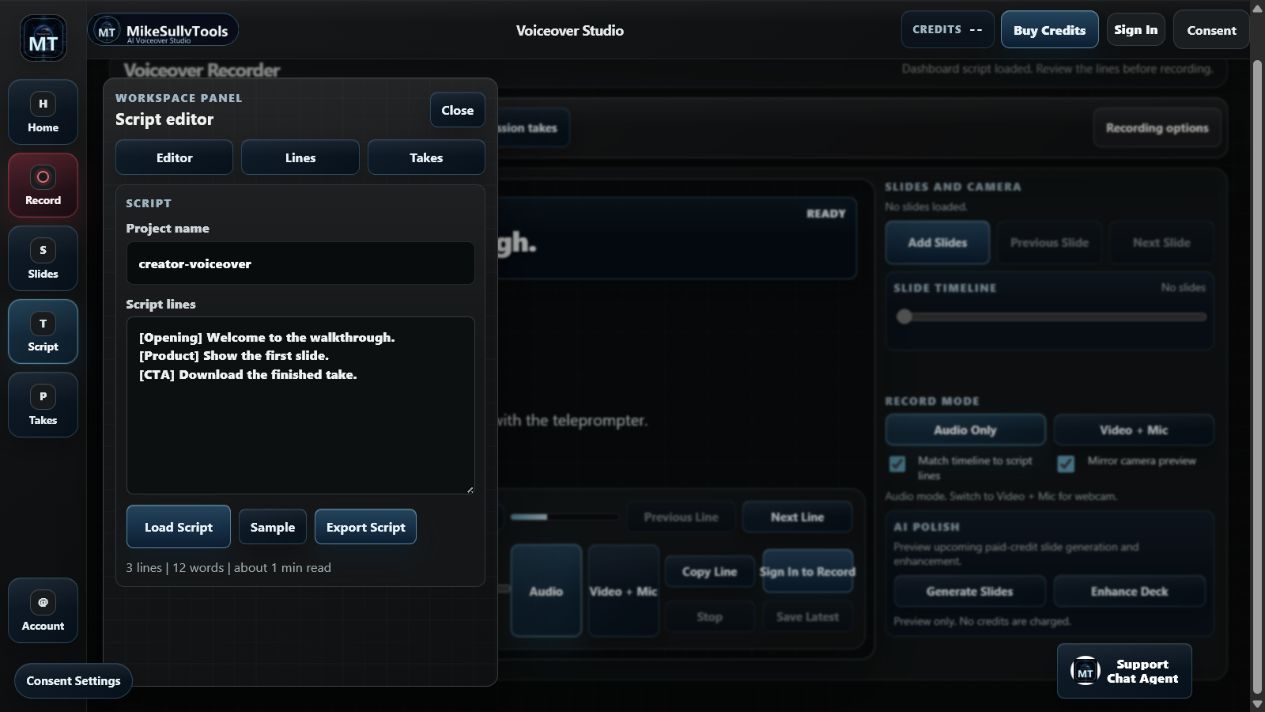
Use the three drawer tabs
Editor changes the source, Lines jumps directly to a parsed line, and Takes opens the recordings already made in this browser session.
Section 03
Set up the teleprompter
The current line appears at the top of the stage and in the scrolling prompt area. Tune the display before spending a weekly recording start.
| Control | Range or behavior | Best use |
|---|---|---|
| Prompter On / Off | Shows or hides the prompt overlay | Turn it off when reading from notes or demonstrating slides. |
| Play / Pause | Starts or pauses automatic scrolling | Start a few seconds before Record to confirm the pace. |
| Speed | 10–90 pixels per second | Start near 28 px/s, then match your natural delivery. |
| Text size | 22–42 pixels | Increase it when the screen is farther from the camera. |
| Mirror | Horizontally flips prompter text | Use with physical beamsplitter-style prompting rigs. |
| Full Screen | Expands the stage when supported | Reduces visual distractions while reading. |
Select the line
Use Previous Line, Next Line, the Lines drawer, or the left/right arrow keys when focus is not inside a form field.
Check the progress bar
The line counter, word count, take count, active mode, and progress bar describe the current position.
Copy when needed
Copy Line sends only the active narration line to the clipboard for use in another editor.
Reset before each read
Changing lines resets the prompter position so a new take starts from the beginning.
Do a dry run first
Prompter playback is free to test. Prepare your script and test prompter playback before pressing Record. The allowance check follows device permission and occurs before recording begins.
Section 04
Choose Audio or Video + Mic
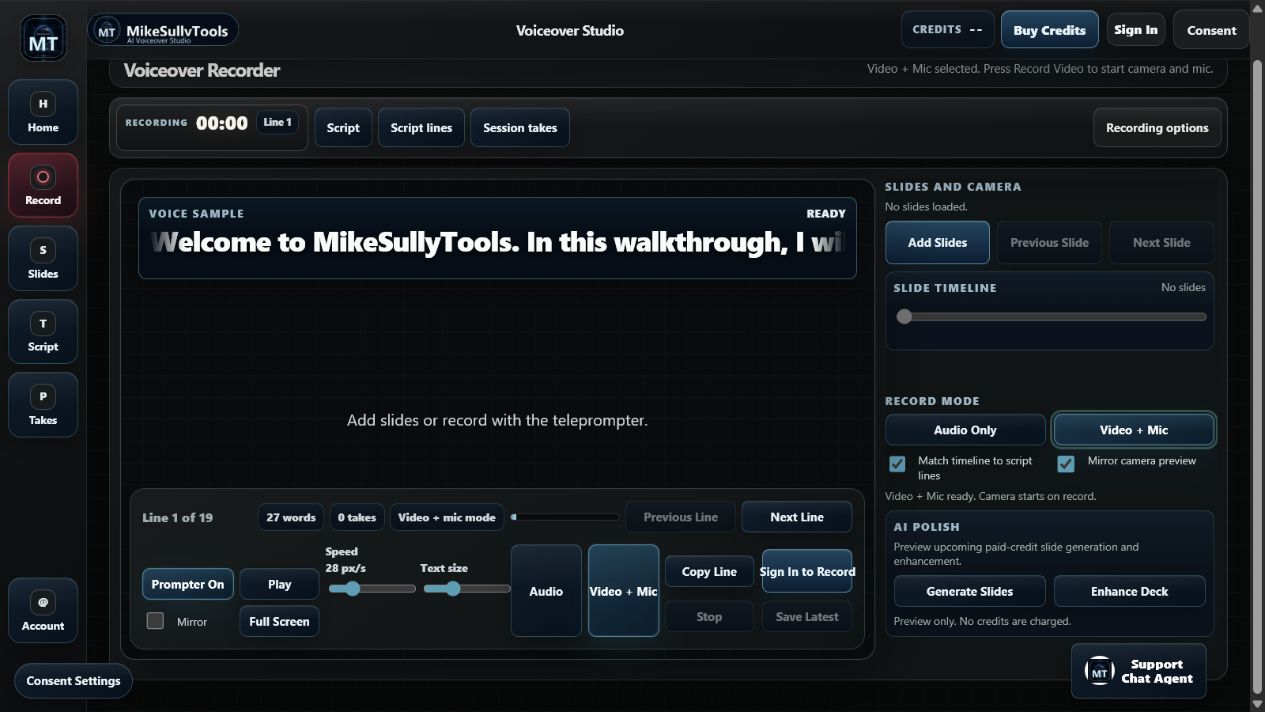
Both mode selectors stay synchronized. Choose Audio Only for narration, podcasts, and voice tracks. Choose Video + Mic for a webcam talking-head take.
Audio Only
Requests microphone access with echo cancellation, noise suppression, and automatic gain control when the browser supports them.
Video + Mic
Requests the microphone plus a user-facing webcam, targeting a 1280 × 720 capture when the device and browser can provide it.
Grant the correct permissions
Audio needs Microphone permission. Video + Mic needs both Camera and Microphone. If blocked, open the browser’s site controls for this page, allow the devices, and try again.
| Message | Likely cause | Next step |
|---|---|---|
| Access blocked | Site permission was denied | Allow Microphone and, for video, Camera in site settings. |
| Device not found | No usable mic or camera is connected | Connect or enable the device, then reload. |
| Device is in use | Another application has exclusive access | Close the other capture app and retry. |
Section 05
Use slides as presentation cues
Upload PNG, JPEG, WebP, or GIF images to follow a visual outline while you speak. The thumbnail strip, Previous/Next controls, and timeline all change the active cue.
Add one or more images
Select Add Slides, then choose the cue images in presentation order and check the active slide. With script-line matching enabled, the current line determines the selected slide.
Move through the deck
Use the thumbnails, Previous Slide, Next Slide, or the slide timeline range control.
Match slides to lines
With Match timeline to script lines enabled, line 1 selects slide 1, line 2 selects slide 2, and later lines remain on the final slide when there are fewer slides.
Check the stage
The active image appears behind the teleprompter area so the script and cue stay visible together.
Slides are not burned into the recording
The current Video + Mic recording contains the webcam and microphone stream. Slides are on-page presentation cues; the recorder does not composite the slide canvas into the saved video.
For a slide-led voice track
Use Audio Only, follow the slide cues, and add the saved audio file to your presentation or video editor afterward.
For a finished talking head
Use Video + Mic. Keep slides visible for reference, but expect the saved file to contain only the camera view and narration.
Section 06
Record a clean take
Record first requests the selected devices, then checks the shared weekly allowance. If it is exhausted, the recorder asks you to confirm use of one Creator Tools credit before starting the take.
Prepare before Record
Select the line and mode, tune the prompter, choose slides if needed, and close other apps that may use the devices.
Start and pause naturally
Press Record Audio or Record Video. Leave a brief quiet gap at the start and end for easier editing.
Stop the capture
Press Stop to finalize the current MediaRecorder data. The new take appears in Session Takes.
Save or continue
Use Save Latest immediately or record another line. Each recording start uses a shared weekly free use or, after explicit confirmation, one Creator Tools credit.
Plan around the weekly allowance
Eligible signed-in members share three free uses per week across the participating tools. Recording a new take uses one of those shared uses, so check the remaining balance before a line-by-line session.
Confirm before using a paid credit
When the shared free allowance is exhausted, a recording start can use one Creator Tools credit. The recorder asks for explicit confirmation before consuming that credit; buying credits does not reset the weekly allowance.
Section 07
Review, name, and download takes
Session Takes lists each finalized recording with an audio or video player and its own Save control. Save Latest always points to the newest take.
What a take contains
- Take number and source line
- Section label and capture mode
- Built-in audio or video playback
- A Save link for the recorded audio or video file
Filename pattern
The recorder builds a readable filename from the project name, the line or presentation label, line number, section, and timestamp.
Example when the browser records WebM: project-line-03-cta-2026-07-16T...webm
Listen all the way through
Check the start, end, volume, background noise, and whether the line was clipped.
Save the keeper
Use its Save link or Save Latest. The browser downloads the recorded file to your normal download location.
Keep the tab open
Session takes live in browser memory. Save important files before reloading, closing the tab, or navigating away.
Clear only when finished
Clear removes the listed takes from the active page and releases their temporary object URLs.
Save before clearing
Clear is immediate for the current page session. Download every keeper first.
Section 08
Understand recording starts and credits
Check the remaining shared weekly uses before recording. Paid fallback is optional and always requires your confirmation.
| Action | Current behavior | Cost |
|---|---|---|
| Start a recording with free uses remaining | The member allowance is checked after device permission and before capture starts. | 1 of the 3 shared weekly free uses |
| Start after the shared allowance is exhausted | Confirm paid fallback before a Creator Tools credit is consumed. | 1 Creator Tools credit per recording start |
| Prepare a script, test the prompter or add manual slide cues | Prepare the workspace before pressing Record. | No recording start is consumed by these preparation actions |
Use the matching wallet
Creator Tools credits cover confirmed recording fallback. Photo, video, AI image and document wallets remain separate. Review your credits or read the shared free-use guide.
Manual slide cues remain available
Upload and arrange your own slide images for presentation cues. AI Polish, AI slide generation and AI deck enhancement are not available in the current recorder.
Section 09
Recommended recipes and quick answers
Choose the smallest workflow that matches the output you need, then save every keeper before leaving the page.
Clean voice track
- Load short, labeled lines.
- Select Audio Only.
- Use headphones and test the prompter.
- Record one polished take, Stop, review, and Save.
Talking-head clip
- Select Video + Mic.
- Allow camera and microphone.
- Choose a readable text size.
- Record, Stop, review the video player, and Save.
Slide-cued narration
- Upload cue images in order.
- Enable Match timeline to script lines.
- Use Audio Only for a voice track.
- Combine the downloaded audio with slides in an editor.
Compare multiple takes
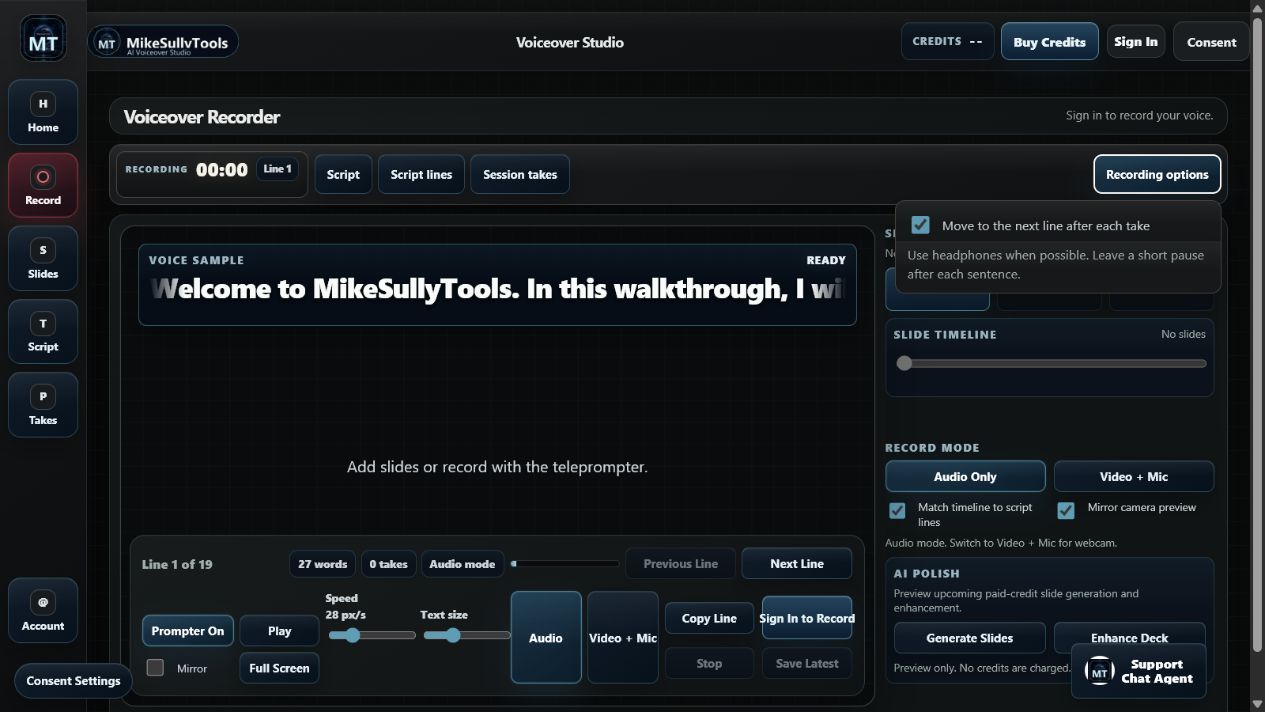
- Turn off auto-advance.
- Check your remaining shared uses before recording a baseline.
- Record another take only if needed; confirm any paid fallback deliberately.
- Compare takes and save the best one.
Are uploaded slides included in Video + Mic?
No. They are visual cues in the workspace. The saved video contains the webcam and microphone stream.
Can Creator Tools credits pay for more recording starts?
Yes. After the shared weekly free uses are exhausted, one recording start can use one Creator Tools credit only after you explicitly confirm. Other wallets do not pay for recording starts.
Why is Record asking me to sign in?
A member session is required to check the shared weekly allowance and any confirmed Creator Tools credit fallback.
When is a weekly start used?
After device permission succeeds and immediately before the MediaRecorder begins. A permission denial does not begin a take.
Where are my recordings stored?
They remain as temporary browser object URLs on the current page until you download them. Save before closing or reloading.
What file type is downloaded?
The recorder prefers WebM when your browser supports it; otherwise the browser chooses the recording format. The filename extension follows the recorded file type.
Fast troubleshooting order
Confirm sign-in → check the weekly allowance → select the correct mode → allow the required devices → close competing capture apps → reload and retry.
Ready to record
Prepare first. Spend a start only when the setup is right.
Load the script, test the prompt speed, confirm the mode, and save each keeper before leaving the page.