Document Credits
The credit pill shows whether a browser session has available document credits. It should be checked before choosing a longer draft.
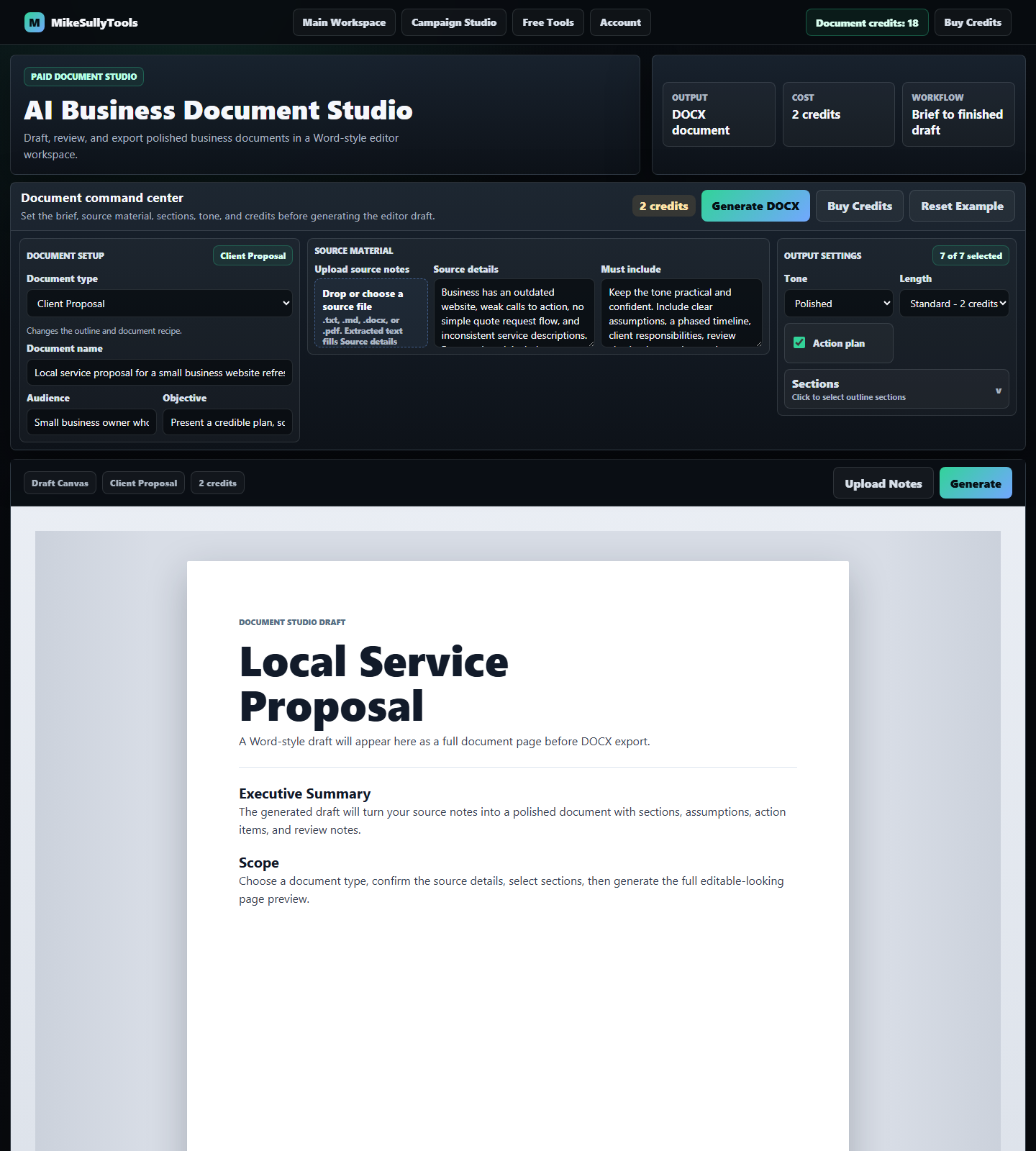
Use the annotated Document Studio map to find the header, credits, compact command center, source upload, source details, tone and length controls, sections dropdown, Word-style document canvas, and DOCX export path.
Use these shortcuts to show one part of the Document Studio guide at a time. The active section opens below while the rest of the workflow stays tucked away.
Back to annotated mapThe Document Studio header keeps the account path close to the drafting workflow. A returning user can see the document credit state, open Buy Credits, move to Account, or jump back to other tools without leaving the page.

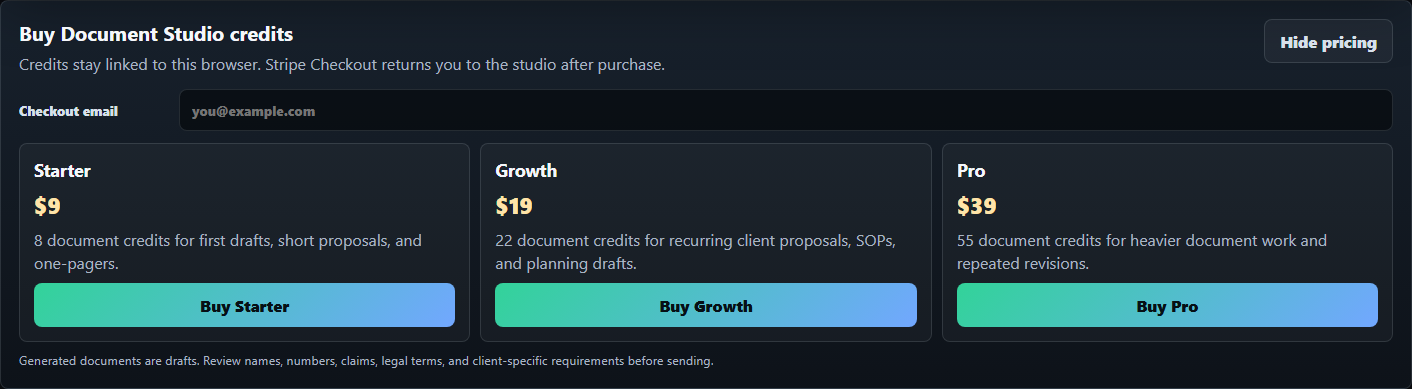
The credit pill shows whether a browser session has available document credits. It should be checked before choosing a longer draft.
Buy Credits opens the paid pack drawer. Starter supports first drafts and one-pagers; Growth and Pro fit recurring proposals, SOPs, and planning work.
Account stays in the top navigation so a member can sign in, review access, or return to stored account context without searching the footer.
The hero and metric cards set the expectation: structured source notes become a polished business document and a downloadable DOCX.
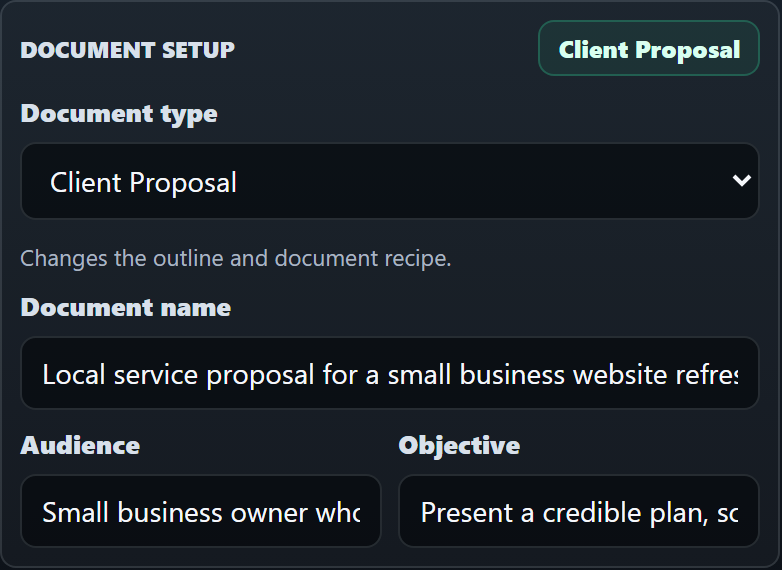
The first decision is the document type. It changes the default section list, workspace chip, example reset, and the structure the generator tries to produce.
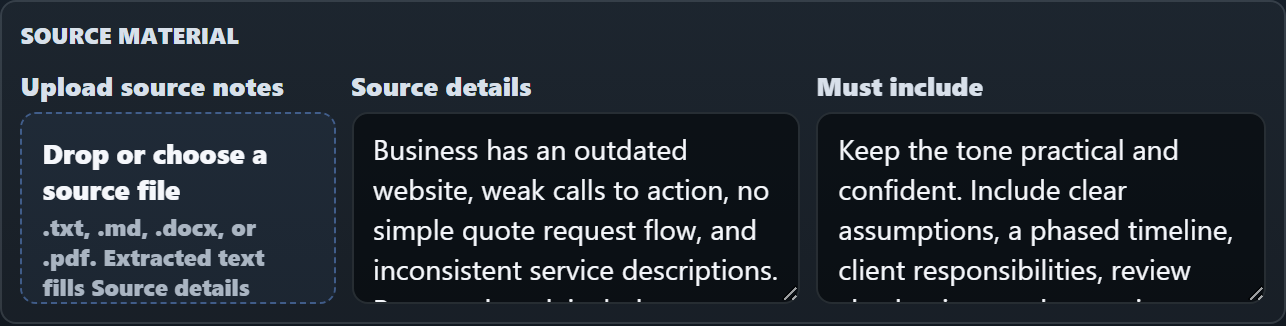
The upload field extracts text into Source details. It is built for old proposals, notes, SOP drafts, briefs, copied client material, DOCX files, and PDF source documents.
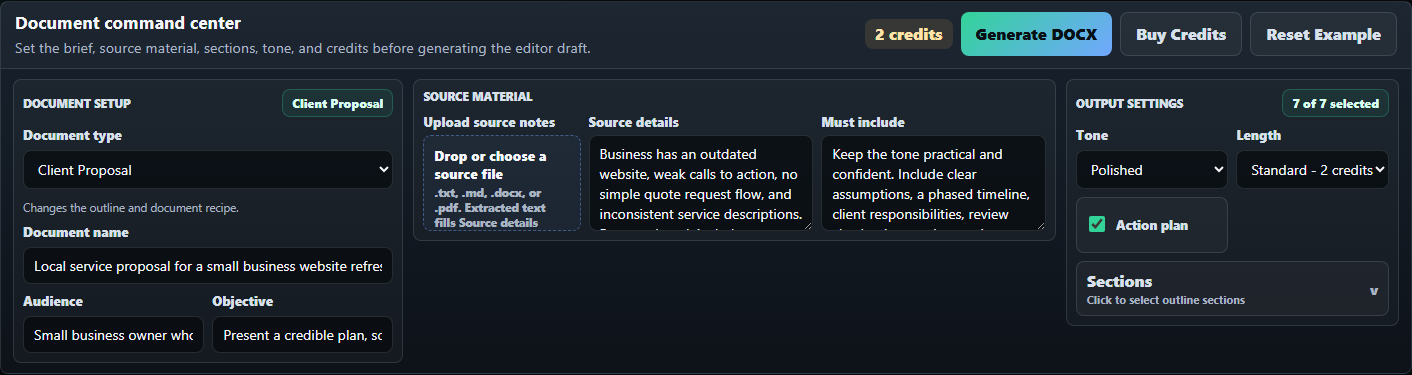
Upload an older proposal DOCX when the useful client context is trapped in a previous draft. Review the extracted text before generating.
Upload a PDF source when the source is a client handout, scope note, campaign requirement sheet, or exported process document.
Use .md when notes already have headings, bullets, links, or rough sections that should guide the final outline.
Use .txt for copied calls, meeting notes, old checklists, or rough bullets that do not need formatting preserved.
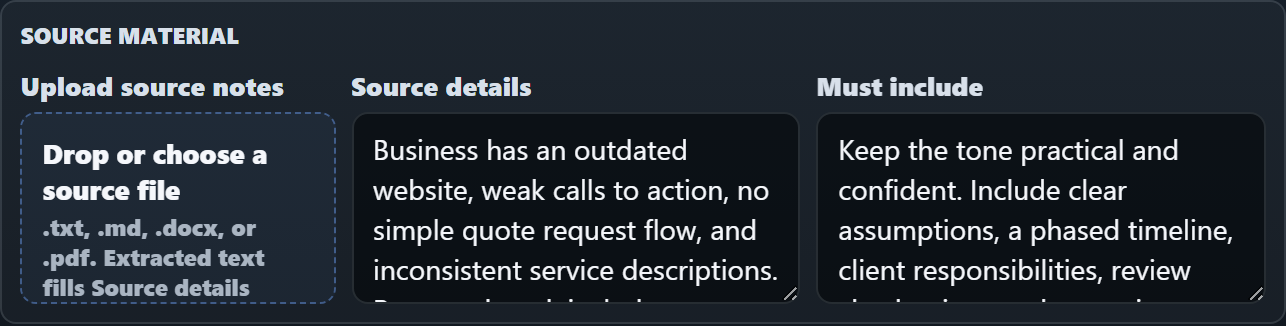
Source details are the substance of the draft. The audience and objective focus the document, while Must include handles rules the generator should not miss.
For the local service proposal, the audience is the small business owner who needs clearer service pages, local lead capture, and simple monthly content support.
The objective says what the document needs to do: present a credible plan, scope, timeline, pricing structure, and next approval step.
Paste the messy facts: outdated website, weak CTAs, no quote flow, inconsistent service descriptions, gallery needs, and a 30-day launch checklist.
Use Must include for assumptions, phased timeline, client responsibilities, review checkpoints, required sections, and the next step.
Tone controls how the draft should sound. Length controls document depth and the credit cost shown in the form, header metric, and workspace chip.
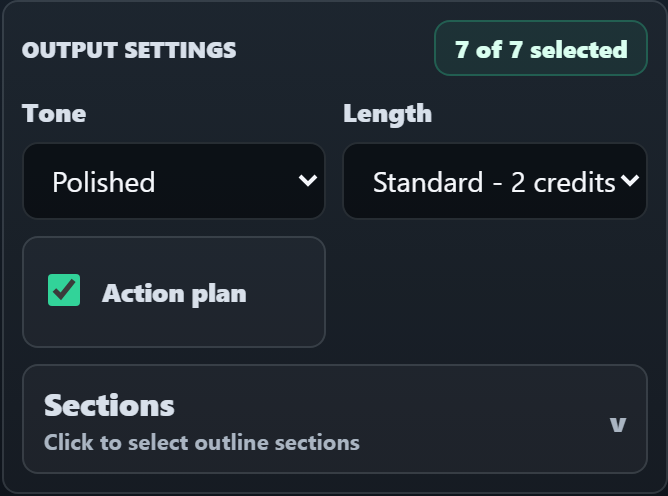
Each document type loads a sensible section preset. Users can keep the full outline or remove sections before generating. The action plan toggle adds a structured table for tasks, owners, and timing.
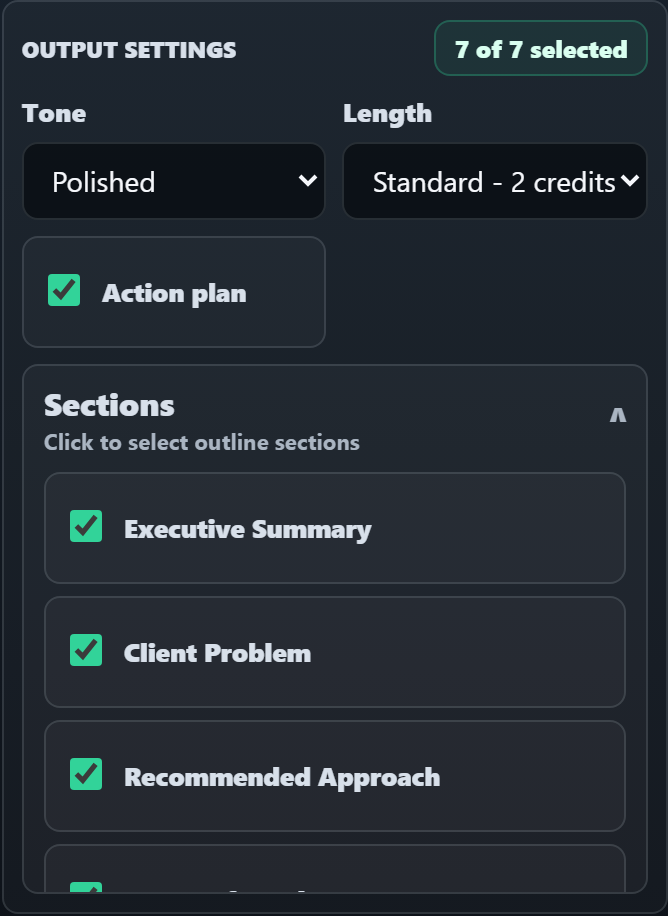
Client Proposal defaults to Executive Summary, Client Problem, Recommended Approach, Scope Of Work, Timeline, Investment, and Next Steps.
SOP defaults to Purpose, Scope, Roles, Procedure, Quality Checks, Exception Handling, and Review Cadence.
Business Plan defaults to market opportunity, offer, operating plan, revenue plan, risks, and next milestones.
Keep the table on when the document should assign launch tasks, process owners, approval checkpoints, or campaign follow-ups.
Below the compact command center, the workspace shows a document preview. Before generation, it shows an example draft shape. Upload or paste notes, choose sections, generate, review the read-only preview, then export DOCX to edit in Word or another compatible document editor.
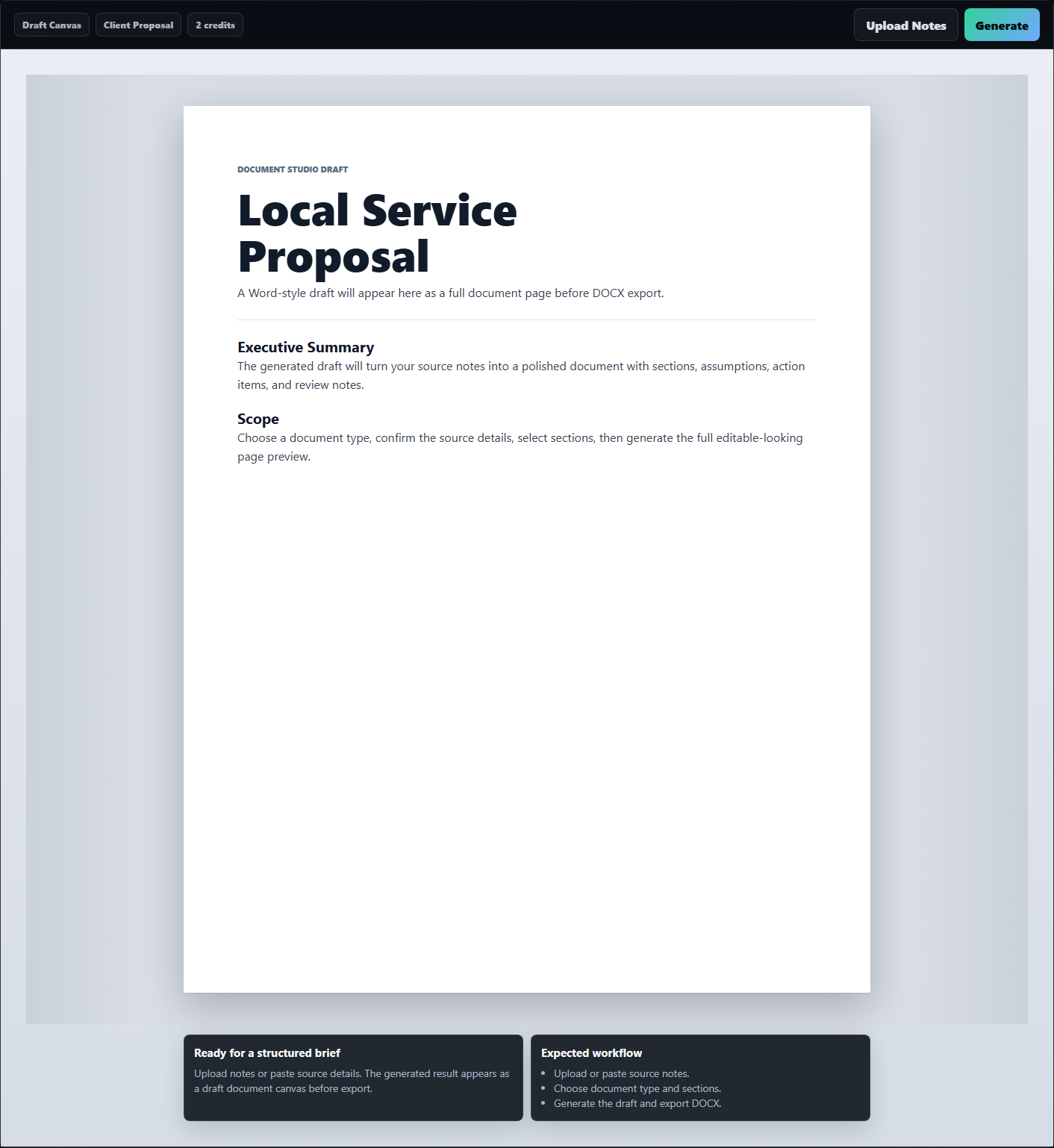
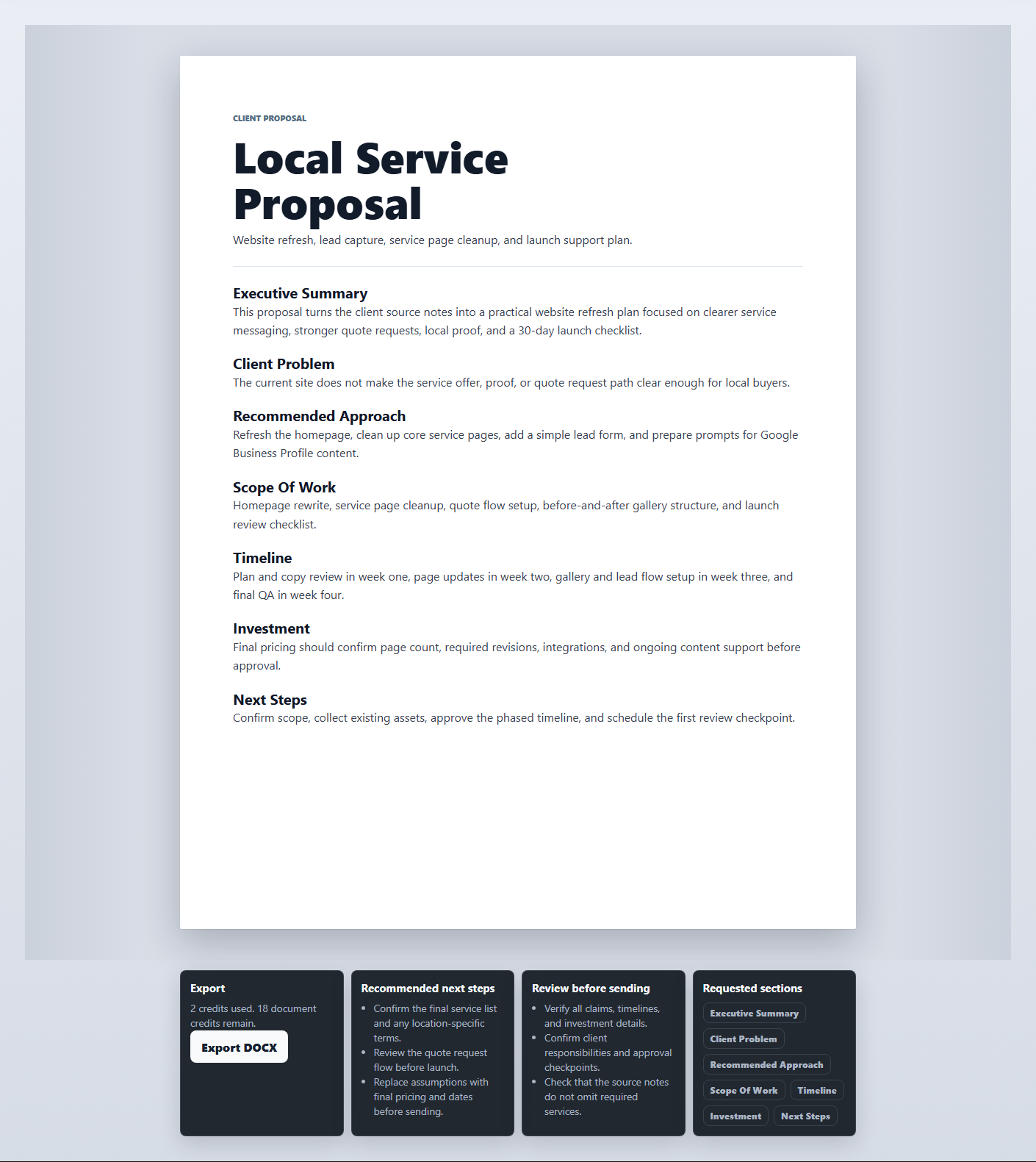
The canvas previews the document shape so users understand they are building a structured draft, not a chat answer.
The cards below the page summarize setup, review notes, requested sections, and export status after generation.
Draft Canvas, selected document type, and credit cost chips keep the active setup visible above the document page.
Upload Notes and Generate stay close to the canvas. Export DOCX appears after a generated document is ready.
Use these examples when deciding what to paste, upload, include, and generate. Each recipe maps to a real business document path supported by the studio.
Paste messy client notes about website problems, quote flow, service pages, gallery structure, timeline, and pricing assumptions. Keep action plan on.
Upload an old DOCX procedure, choose SOP, keep roles and quality checks, and require exception handling plus review cadence.
Paste rough bullets about audience, offer, proof, objections, and CTA. Use Direct tone and concise length for a sales-ready sheet.
Paste product launch notes, target market, revenue assumptions, operating constraints, risks, and 30/60/90 day milestones.
Paste campaign requirements, audience, key message, deliverables, channels, approval notes, and visual direction.
Paste service/about page copy, case proof, selected experience, target client, and preferred next step for a polished profile.
Upload an old client proposal DOCX, review extracted Source details, then regenerate as a cleaner current proposal.
Upload a PDF scope sheet or process handout, review extracted text, then generate a structured brief or SOP.
Choose the document type first. It controls the default sections and example reset, which affects every field that follows.
Upload when source context already exists in an old proposal, SOP, PDF requirement sheet, or markdown notes.
Concise costs 1 credit, Standard costs 2 credits, and Detailed costs 3 credits. Buy Credits opens the document credit packs.
Export after reviewing the generated sections, assumptions, action plan, names, numbers, claims, and client-specific terms.