Which online voiceover recording tool should you use? For a short solo narration, start with a browser recorder that lets you read a script, review the take, and save the file. Choose a remote-recording service when other speakers are involved, a transcript editor when the words will change, or a video editor when narration must line up with visuals. Those are different jobs, so this guide compares seven tools by the work each one actually supports.
We used the MikeSullyTools Voiceover Recorder to build the example below, and checked the other products against their own help pages on October 18, 2026. The comparison describes documented features, not a same-file audio-quality test. Prices, plan limits, and interfaces can change.
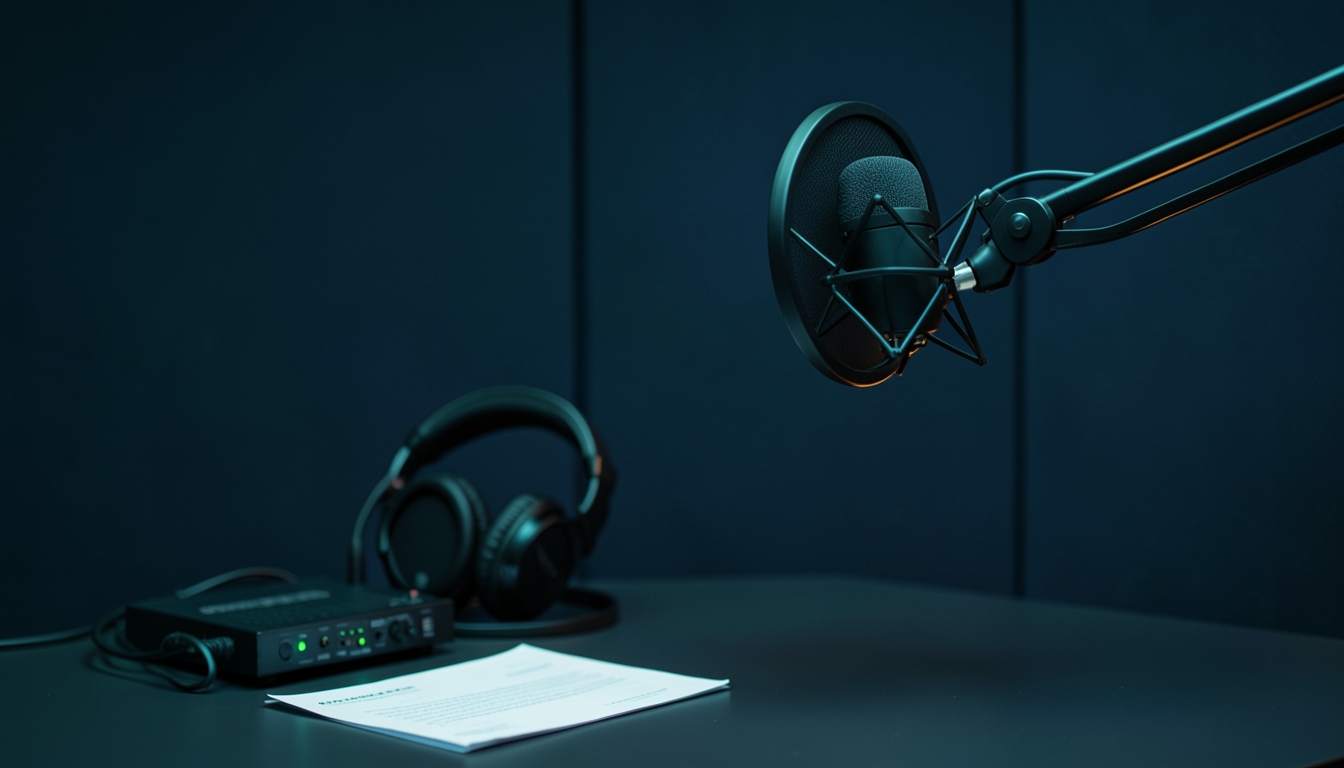 MikeSullyToolsVoiceover Recorder
Example 1
MikeSullyToolsVoiceover Recorder
Example 1
Choose by the job before comparing features
Before picking any tool, check the output format your next editor accepts, whether it records from your intended microphone, and whether a take is stored locally or uploaded. A browser-based recorder does not automatically include trimming, noise repair, MP3 export, or unlimited recording.
A real MikeSullyTools script setup
For this update, we opened the signed-in recorder, named a project quiet-room-voiceover-demo, entered four short lines, and loaded them into the teleprompter. These are fresh captures of that setup, not a claimed audio recording. The script is deliberately short enough to read without rushing:
- Intro: Quiet room. Clear message. One good take.
- Setup: Set the mic just off to the side.
- Record: Speak steadily and listen before saving.
- Finish: Export WebM, then add it to your editor.
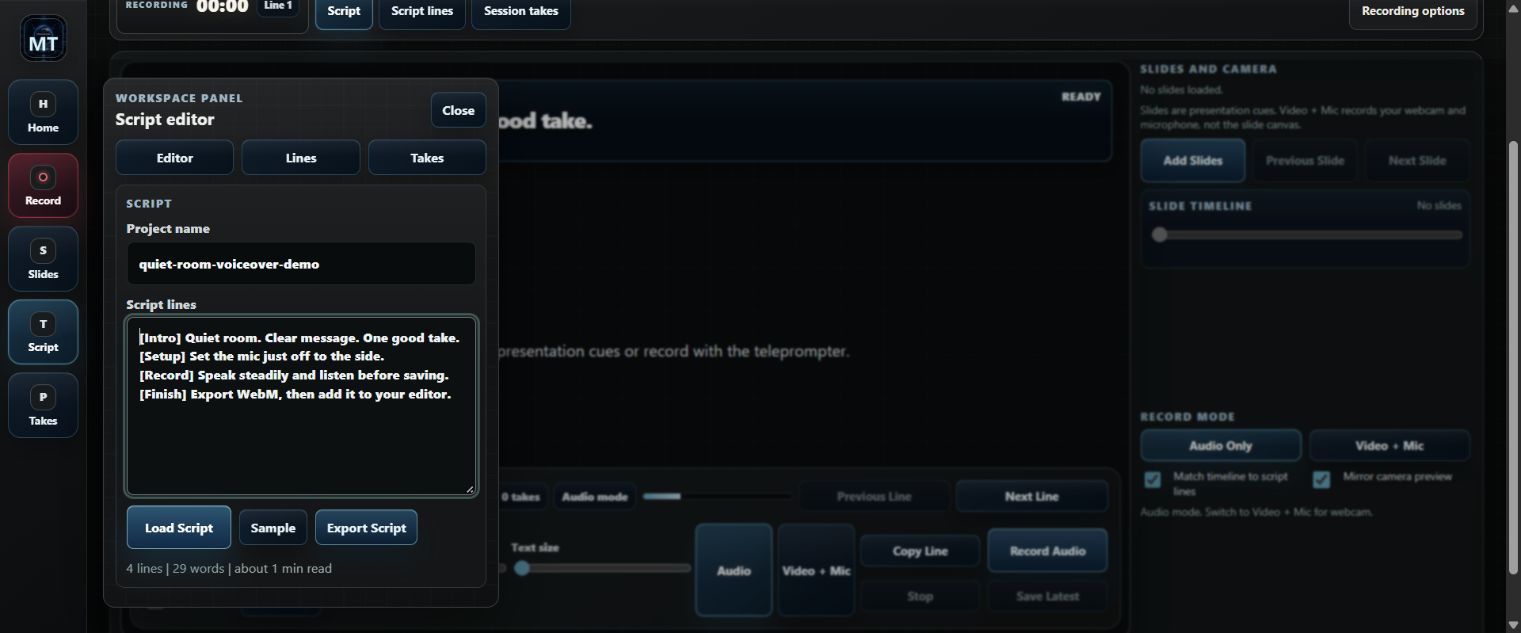
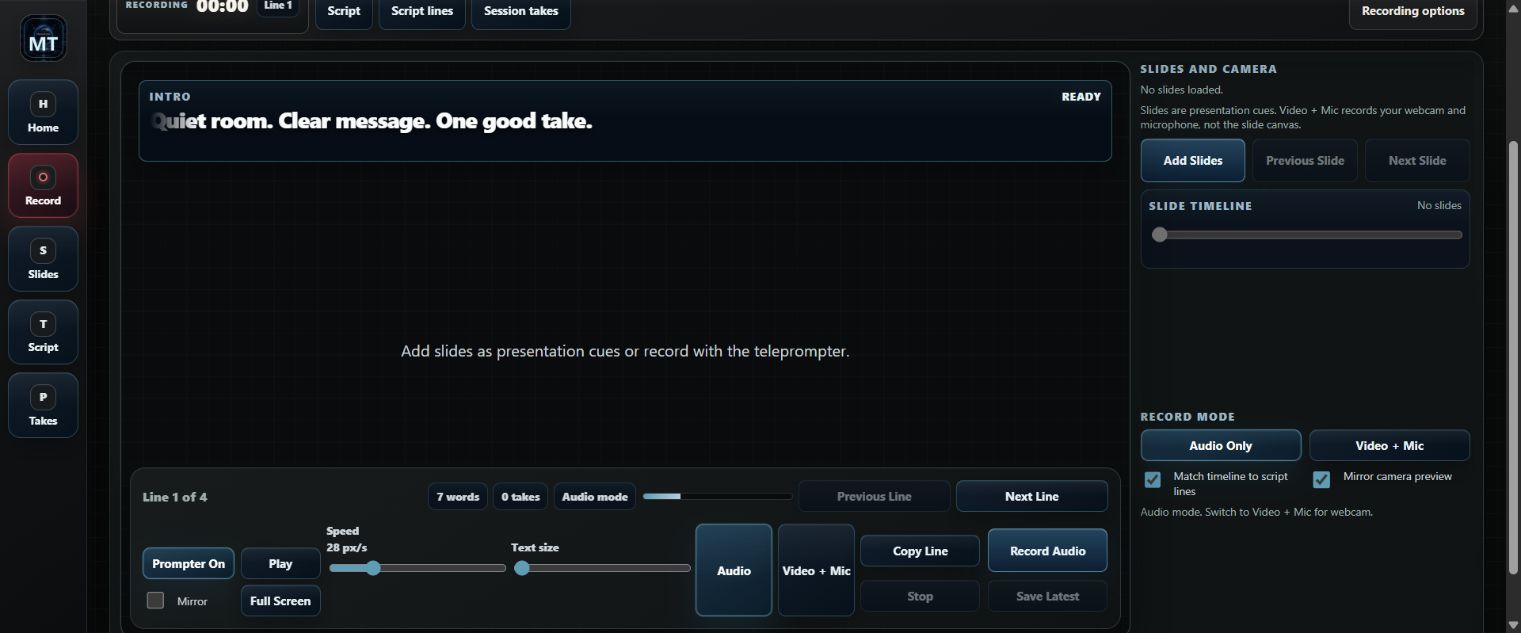
To turn this script into a take, sign in, check the current allowance, set the microphone in the browser, and do a spoken dry run before pressing Record Audio. Recording starts use the three free weekly member uses shared across eligible tools first. After those are used, each additional recording start requires 1 Creator Tools credit, and the site asks you to confirm before charging it. Stop, listen in Session Takes, and use Save Latest or a take's Save link before closing the page. The current audio download is WebM. The step-by-step recorder guide covers permissions, playback, filenames, and the separate Video + Mic mode.
Slides in the recorder are presentation cues; they are not burned into a saved webcam video. AI Polish is not currently available as an audio-cleanup feature. Creator Tools credits can authorize additional recording starts after the shared free allowance; Photo, Video, AI Image, and Document credits cannot substitute. If your editor needs MP3 or WAV, convert a copy of the downloaded WebM in a tool that supports that format. If you need to trim or repair audio, do that in an editor after saving; the recorder does not currently promise those controls.
Seven online voiceover recording tools, by workflow
1. MikeSullyTools Voiceover Recorder: a scripted solo take
The Voiceover Recorder gives a signed-in creator a script editor, line navigation, teleprompter, Audio Only or Video + Mic capture, session playback, and WebM download. It suits a short tutorial line or social narration you plan to finish elsewhere. Plan your read first: each recording start uses a shared free use or, after those run out, 1 Creator Tools credit with your explicit confirmation. It is not the choice for native MP3/WAV export, built-in trimming, remote guest tracks, or a full audio mix. See the current tool guide.
2. Riverside: remote speakers and separate tracks
Riverside documents local recording on each participant's device and separate high-quality track downloads. That makes it a fit when a guest, host, or interviewer needs an individual track for later editing. For a single 15-second narration, decide whether that production setup is useful before starting a new session. Riverside's track-download documentation explains the available track types and account limits.
3. Descript: revise the words after capture
Descript links a transcript to recorded media. Its documentation says deleting or moving words in the script changes the corresponding audio or video. Choose this route when you expect to shorten a tutorial, remove a repeated phrase, or rearrange a longer explanation. It is more editing workspace than a bare recorder, so first decide whether transcript editing is part of your job. See Descript's editing guide.
4. Adobe Express: build the visual piece around narration
Adobe Express can add audio in its video timeline and offers a Record yourself option for video with microphone and camera. It fits a presentation or short visual design when the final composition matters as much as the voice. Do not assume its web Record yourself flow is an audio-only recorder; import an existing voice track when that is what the project needs. See Adobe's video timeline guide and recording guide.
5. VEED: record alongside a captioned video
VEED documents browser screen, camera, and audio capture, a teleprompter, and a path from the recording into its editor. Its subtitle workflow can turn uploaded audio or video into captions, subject to plan limits. That is useful when the deliverable is an explainer or social video with on-screen text. See VEED's recorder guide and subtitle guide.
6. Soundtrap: microphone tracks and a larger audio project
Soundtrap's Studio supports a Voice & Mic track, input selection, presets, and recording more than one microphone track. That is useful when the narration belongs with music or other audio layers. A plain spoken line may not need a studio project. See Soundtrap's microphone setup guide.
7. BandLab: browser multitrack creation
BandLab Studio describes a browser-based music workspace with Voice/Audio tracks, imported audio, and additional tracks. It suits a project where the voice will be mixed with music or sound design. Keep a clean spoken copy so effects do not obscure the words. See BandLab's Studio guide.
Record a usable take without wasting a start
- Write for speech. Put one thought on each line, mark names that need careful pronunciation, and time a dry read aloud.
- Prepare the room. Silence alerts, move away from fans and reflective walls, and keep the microphone just off-axis to reduce hard P and B sounds.
- Check the input. Make sure the browser sees the microphone you intend to use. A connected headset can change the selected device.
- Capture and review. Start only when the script and setup are ready. Listen for room echo, clipping, low volume, and rushed words before choosing the keeper.
- Save before editing elsewhere. Download the WebM and name it for the project and date. Make a copy for conversion or cleanup so the original take stays intact.
Common questions
Can I download MP3 or WAV directly from MikeSullyTools?
Its current Voiceover Recorder saves WebM audio or video. Use a separate converter or editor if a later step requires MP3 or WAV, and check the result before sending it to a client or publishing it.
Does the recorder remove noise or trim silence?
Do not plan on native cleanup or trimming in this recorder. Improve the source before capture and do edits in a separate audio or video workspace after saving the take.
Does buying credits give more recording starts?
Yes. Use the three free weekly member uses shared across eligible tools first. After they are used, each additional recording start costs 1 Creator Tools credit and requires your explicit confirmation before the credit is charged. Other credit wallets cannot substitute. AI Polish is not currently available as an audio-cleanup feature.
Should I pick the same tool for every voiceover?
No. Choose for the next job: quick solo capture, remote guests, transcript changes, captioned video, or multitrack sound. Export compatibility and the actual current plan limits matter more than a generic “best” label.
How this guide was checked: MikeSullyTools screenshots and script export were created in the owner workspace on October 18, 2026. No microphone take was recorded for this example. Other product descriptions come from the linked official help pages, reviewed on the same date; their audio quality was not independently compared.